Tag Management
CenterScape interfaces with readers that receive beacons from all tags whose tag groups are configured in the admin console. However, the tag messages from these tags do not reach the CenterScape application level unless they have been granted access. This is done since tags present may not be owned by the same entity that uses CenterScape such as in colocation facilities or when multiple organizations have their own instance of CenterScape in a larger organization. Additionally, CenterScape avoids wasting resources that would be used tracking tags that are not associated with assets or destined to be associated with assets.
A tag is valid to be associated with an asset in the “Asset Tag” field if any of the following conditions are true.
- The tag is within range of any reader that CS has access to and is actively being read by the reader.
- The tag is an “unassigned tag” that has been provisioned by tag management
- The asset is updated via the import function and has a valid tag group prefix followed by a number 00000001 to 99999999
Note: These rules also apply to API updates. The /api/configimport has the same constraints as condition 3 and the /api/entity update has the same constraints as conditions 1 and 2. The Tag Management function of the User Console is designed to control which tags are in an unassigned state and therefor ready to be associated with assets. Clicking on Manage Tags under the “Tag Management Menu” will display a list of tags on the right that are in a state of unassigned tag.
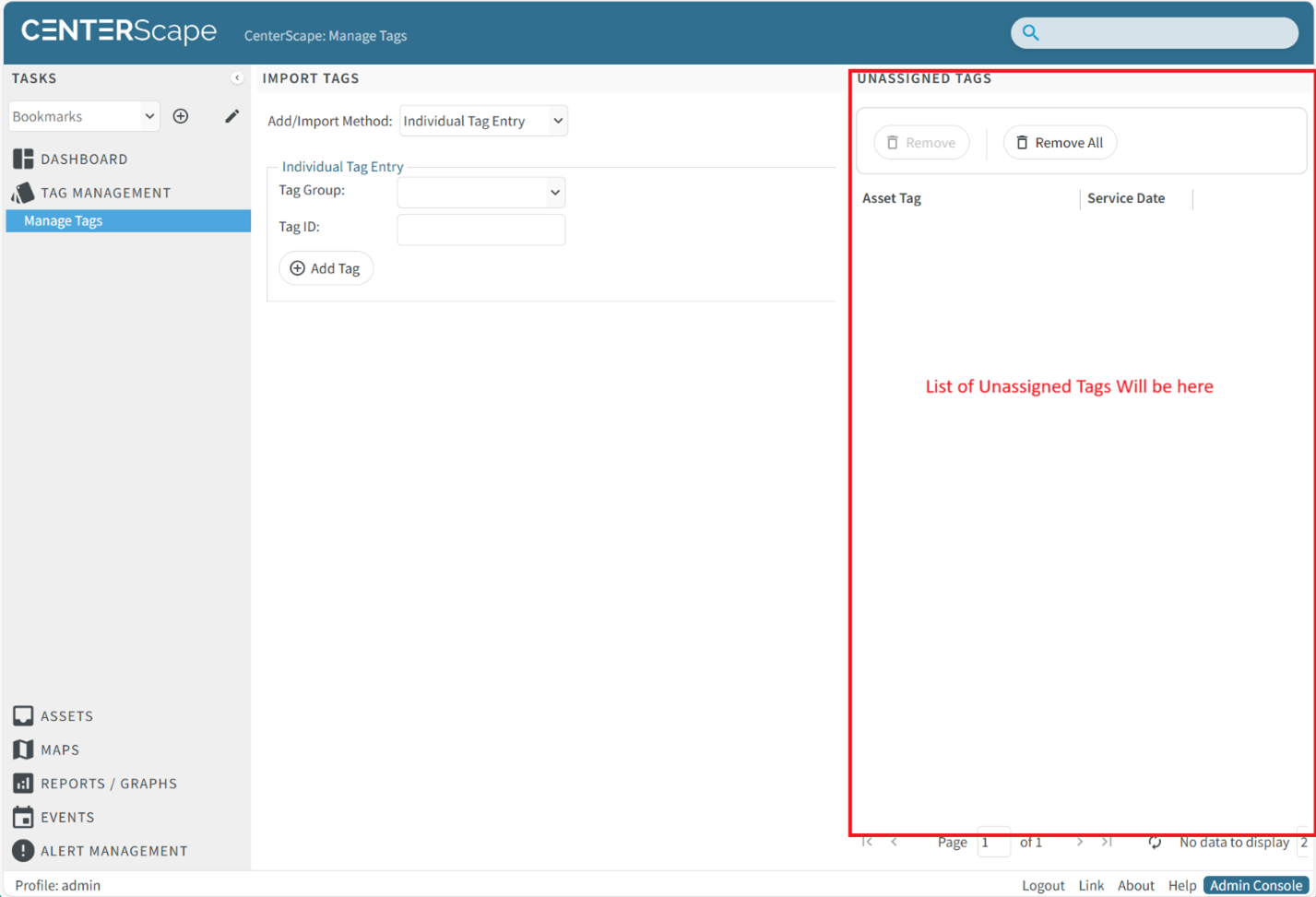
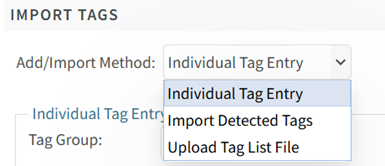
There are three methods to add a tag to the unassigned tag list. The Add/Import Method drop down allows the selection of which method to use.
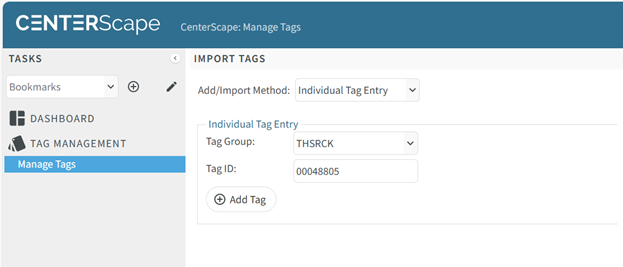
Individual Tag Entry allows a user to enter a single tag at a time. This involves selecting the group code of the tag from a drop down of available group codes and then typing the numeric portion of the tag into the tag id field. Clicking the “Add Tag” button will then add the tag to the unassigned tag list.
The import detected tags method will query Zone Manager for a list of tags not already in the Unassigned Tag list and not already associated with an existing asset in CenterScape. The list can be filtered by Zone Manager, Tag Group and a Tag Filter and is executed when the load button is clicked. The tag filter is just a string search in the tag id. For example if the Tag Filter is “RF” then all the tags with the Group Code RFCRCK in it will be returned as RF is in the tag string.
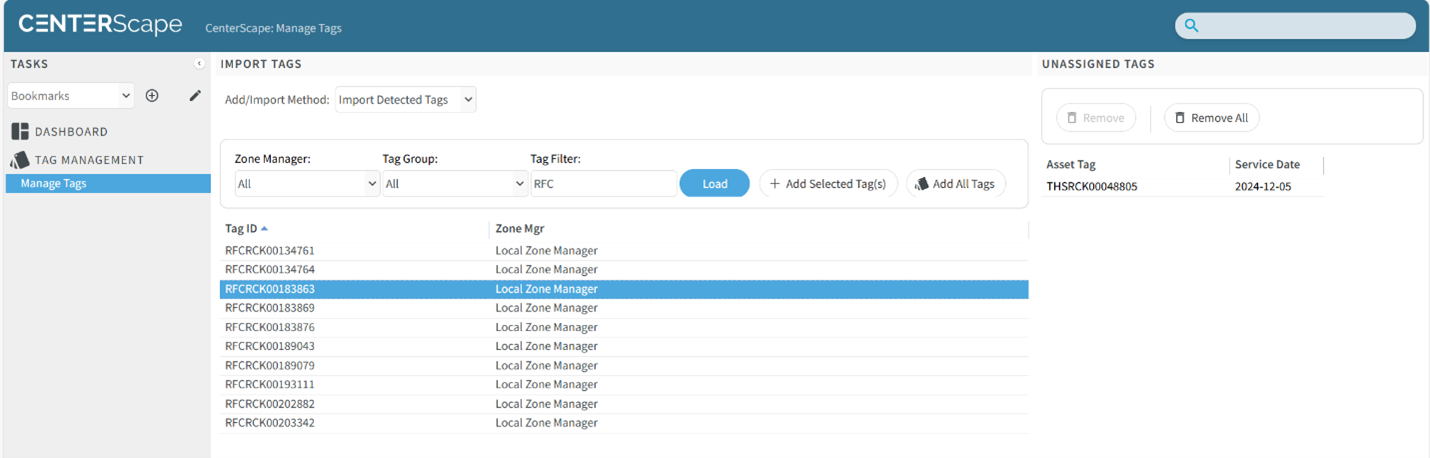
After the results are presented, users can select which tags they want to add by highlighting the tag and clicking “Add Selected Tag(s)”. The shift or ctrl key can be held down to selected multiple tags at a time. Alternatively, the “Add All Tags” button will add every tag detected but not assigned to an asset or already an unassigned tag. “Add All Tags” ignores Zone Manager, Tag Group and Tag Filter.
The third method of adding tags is to Upload Tag List File. A tag list file is a simple text file whose first line is “tag.tagID” and each subsequent line is a complete tag id.
For example the file would look something like the following.
tag.tagID
TMPRCK00000001
RFCRCK00000001
RFCRCK00000002
RFCRCK00000003
Files should be limited to 50,000 tags unless a large memory footprint is used with the CenterScape application.
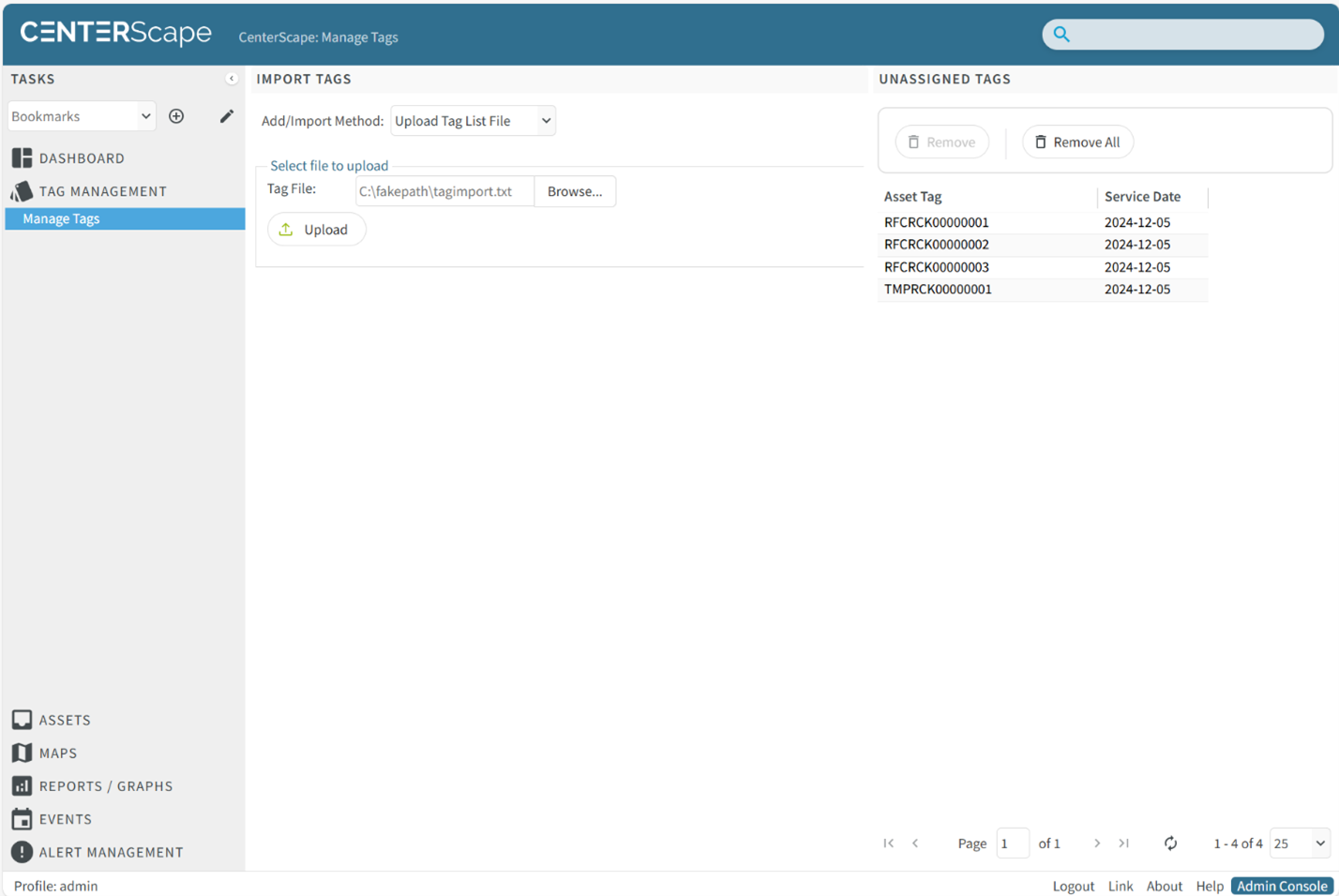
In the Unassigned Tag List the Service Date is the day that the tag was added. To remove a tag from the Unassigned tags list click on the tag and then click the Remove button. To remove all Unassigned tags click the Remove All button.